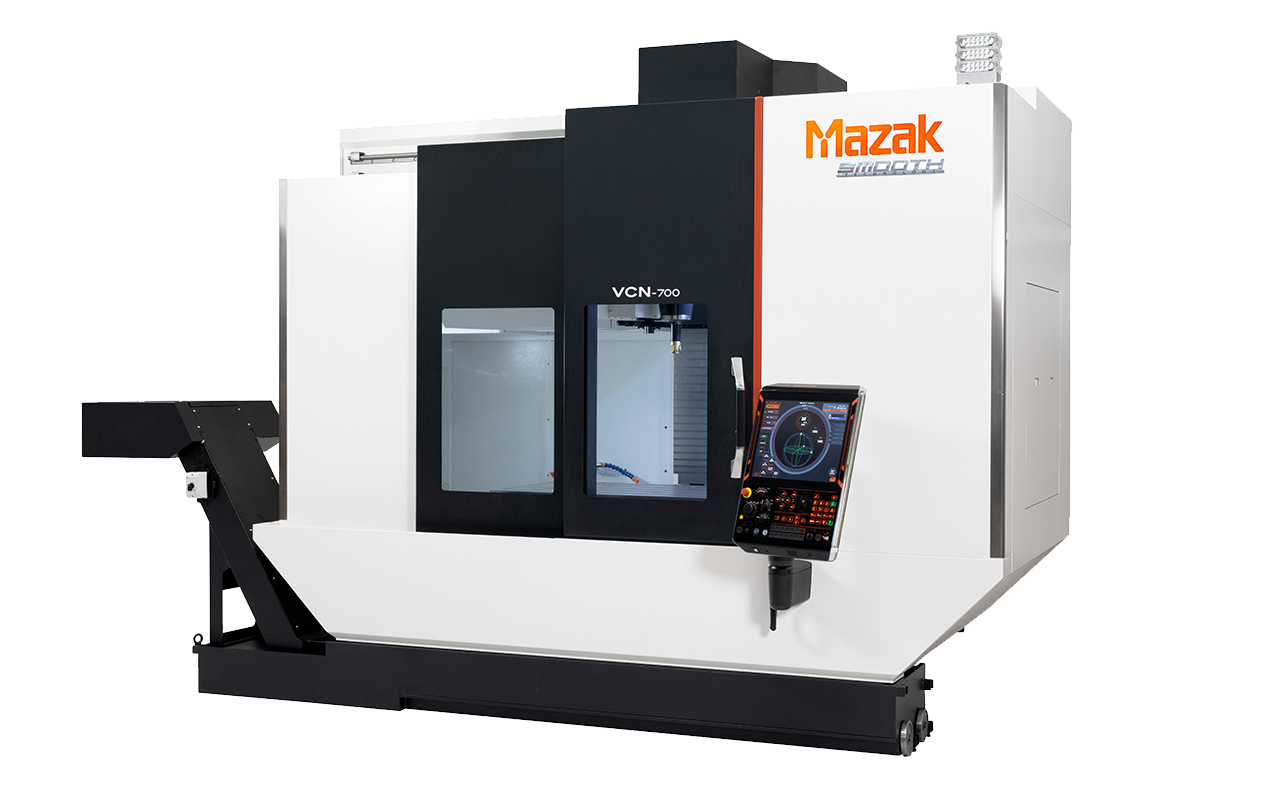
Mazak VCN-700
The Mazak VCN-700 (and all other VCN machines) supports installing the Mazak MT-Connect software on the machine control. Once the MT-Connect agent is installed and licensed, Reniway Edge can connect to the machine and read live CNC data through the MTConnect connector.
What you need
| Necessities | Description |
|---|---|
| MT-Connect Setup.exe | Installation file for the Mazak MT-Connect software. |
| License key | The license key supplied for the machine. |
| Company ID | The company ID that came with the license. |
| CNC serial number | The serial number of the Mazak control. |
| Machine model | The correct machine model folder, in this case VCN-700. |
| Network connection | Ethernet connection between Reniway Edge and the Mazak control. |
| Machine IP address | Static or reserved IP address of the Mazak control. |
| MTConnect port | The port exposed by the MT-Connect agent. Use the configured/default port from the Mazak MT-Connect setup. |
Installing MT-Connect
Start by transferring the Setup.exe file to the machine control. The easiest way is usually through a Windows network share, because the machine often has limited keyboard and mouse access.
Once the installer is accessible from the Mazak HMI, you can start the installation.
Execution of Setup.exe
Navigate through the Mazak HMI to the Setup.exe file and execute it. The installer is a standard MSI-style installer. Go through the installation wizard and keep the default installation path unless the customer or machine builder has a specific requirement.
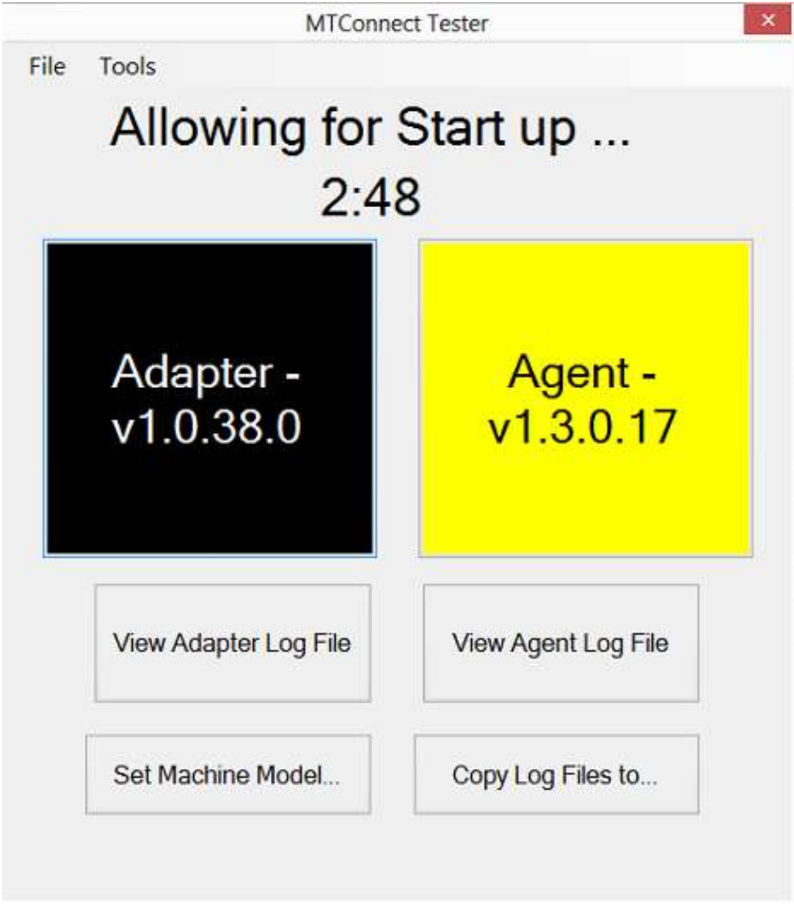
After the installation, verify that the MT-Connect Tester can be launched. This confirms that the software was installed correctly.
Setup MT-Connect Tester
The MT-Connect Tester should now be installed. Use it to select the correct machine model and activate the license.
Press Set Machine Model... and browse through the available machine model directories. Select the folder for VCN-700.
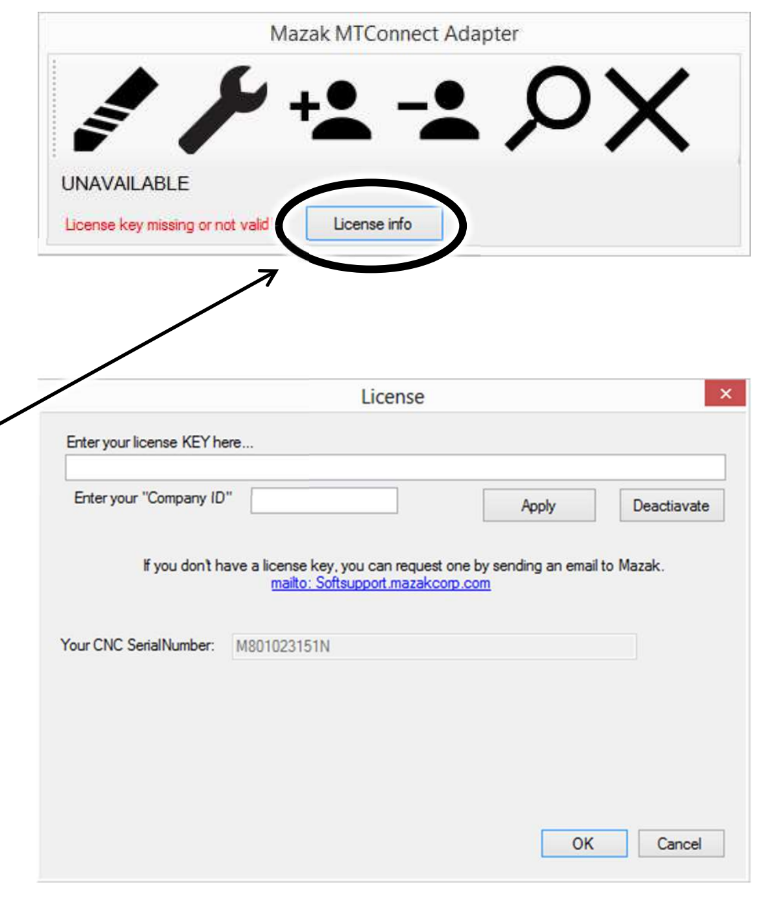
Next, open License Info. Fill in the received license key, company ID, and CNC SerialNumber. Press Apply and then OK.
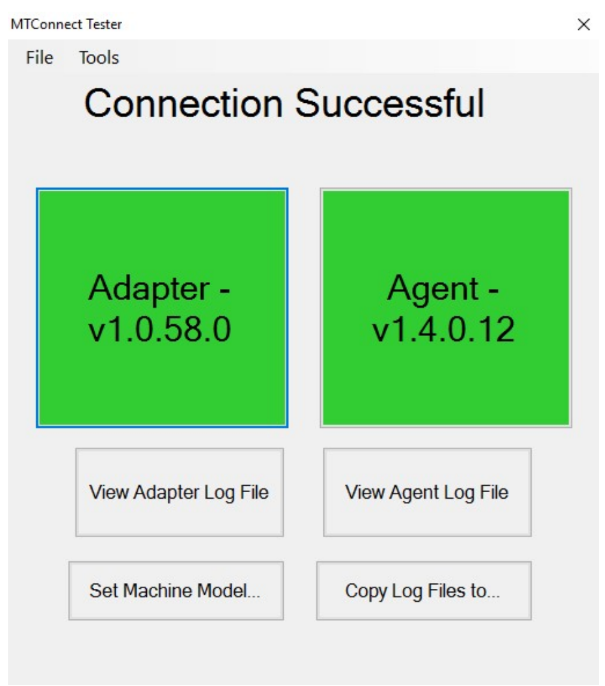
When the license and machine model are accepted, the tester should show a successful connection.
If the connection fails at this point, verify the license data first. The license is normally bound to the machine or CNC serial number, so a typo in the serial number can prevent activation.
Mazak software
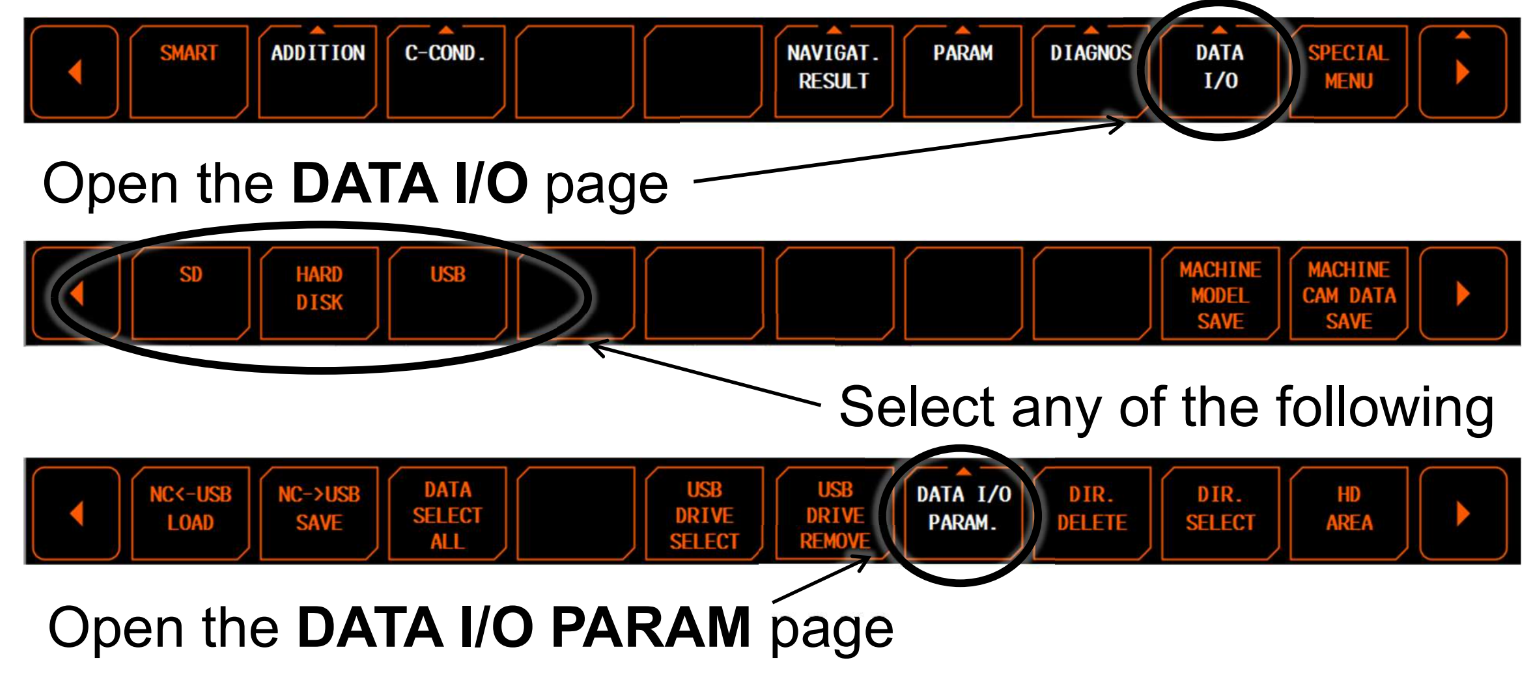
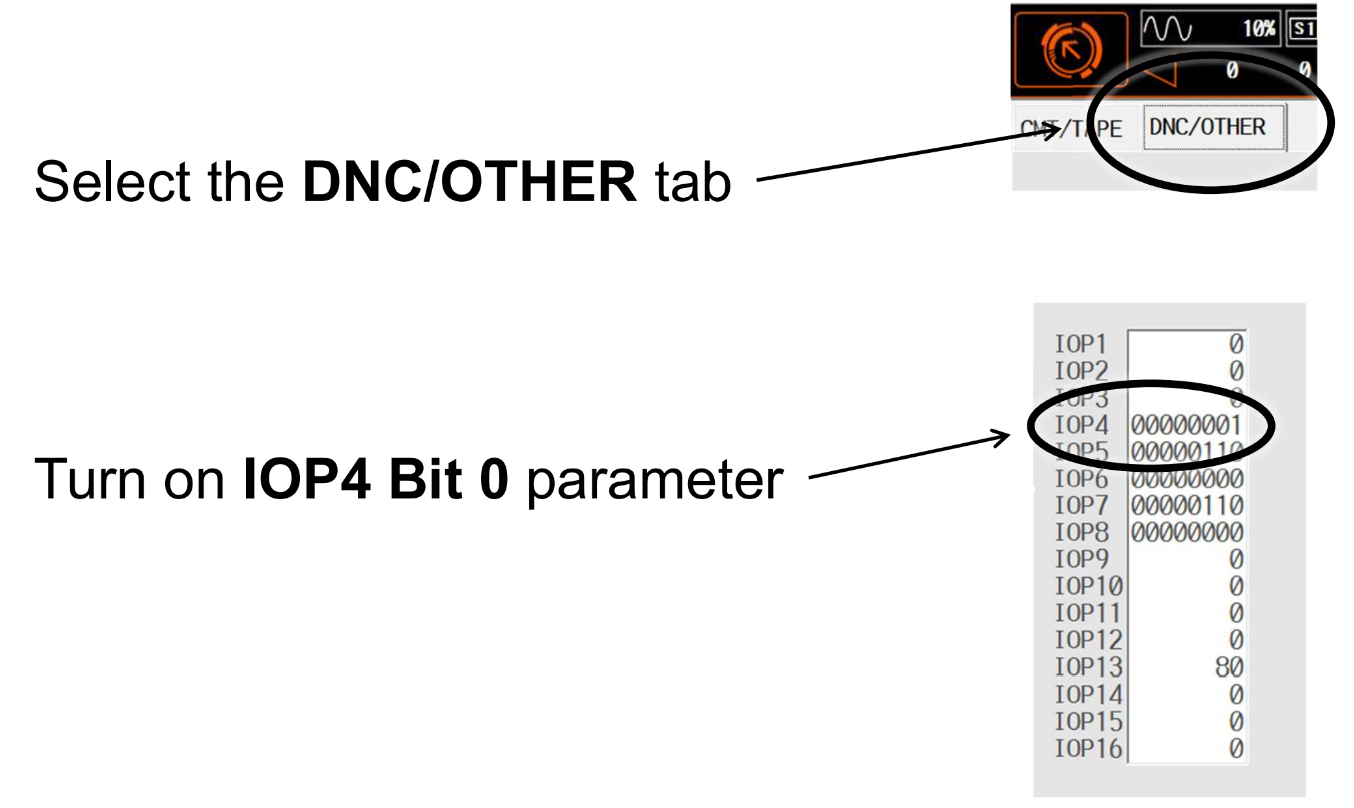
In the Mazak software, open the DNC/OTHER area. Turn on IOP4 Bit 0.
This enables the MT-Connect data exchange from the Mazak side. If the tab is not visible, restart the HMI after installing MT-Connect and check that the installation completed under the correct Windows user.
Verify MTConnect from the network
Before configuring Reniway Edge, verify that the MT-Connect agent is reachable from the same network as the edge device.
From a PC or the Reniway Edge device, open the MTConnect agent in a browser:
http://[machine-ip]:[mtconnect-port]/probe
The page should return an XML document with the available MTConnect devices and data items. You can also check:
http://[machine-ip]:[mtconnect-port]/current
If these URLs do not respond, check the machine IP address, the configured MTConnect port, Windows firewall rules on the Mazak control, and the physical network connection.
Reniway connection
Open Reniway Edge and add a new MTConnect connector.
Fill in the connection settings:
| Setting | Value |
|---|---|
| Name | A clear name, for example Mazak VCN-700. |
| Host Name | The IP address or hostname of the Mazak control. |
| Port | The MTConnect port exposed by the Mazak MT-Connect agent. |
Save the connector and start the connection. Use the property picker to browse the MTConnect device tree and select the data items you want to read in Reniway Edge.
After selecting the properties, verify that the values update while the machine state changes. Good first checks are execution state, controller mode, active program, alarms, and override values.
Troubleshooting
| Symptom | Possible cause | Solution |
|---|---|---|
| MT-Connect Tester does not start | Installation failed or wrong user context | Re-run the installer from the Mazak HMI and verify the installation path. |
| License is rejected | Wrong license key, company ID, or CNC serial number | Re-enter the values exactly as supplied with the license. |
| MT-Connect Tester cannot connect | Wrong machine model selected | Use Set Machine Model... and select VCN-700. |
/probe does not load from the network | Network or firewall issue | Verify IP address, port, Windows firewall rules, and routing between Reniway Edge and the machine. |
| Reniway connects but no properties update | Data item not selected or MTConnect agent not publishing | Check /current in a browser and reselect the required data items in Reniway Edge. |
Result
The Mazak VCN-700 is now publishing MTConnect data and can be used as a live machine data source in Reniway Edge.