Siemens S7 (S7CommPlus)
The Siemens S7 (S7CommPlus) connector is a field connector that reads from and writes to SIMATIC S7-1200 and S7-1500 controllers over the S7CommPlus protocol, the same protocol TIA Portal and HMI panels use.
Older controllers (S7-200, S7-300 and S7-400) speak classic S7comm instead and are handled by a separate Siemens S7 (S7comm) connector.
It browses the controller's symbols directly, so there is no need to know addresses or load the TIA project. Values are delivered by PLC subscriptions: the controller samples at the cycle time you choose and pushes the values that changed. Reniway never polls the controller.
Supported controllers
The connector works with the SIMATIC S7-1200 and S7-1500 families, including the SIMATIC Drive Controller, the S7-1500 Software Controller and PLCSIM Advanced.
An unprotected controller reached over the legacy handshake has no firmware requirement. Older firmware such as S7-1500 V2.6 works. Minimum firmware versions only apply once TLS or a password is involved:
| Controller | TLS | Password | Username and password |
|---|---|---|---|
| S7-1500 | V2.9 | V2.9 | V3.1 |
| S7-1200 | V4.5 | V4.3 | not supported |
| S7-1200 G2 | yes | yes | yes |
| S7-1500 Software Controller (1507S) | V21.9 | V21.9 | not supported |
TLS was introduced together with Secure PG/HMI communication, which is why it needs newer firmware than a password does. A controller below these versions reports firmware not supported when a password is configured; use Anonymous with security mode Legacy instead.
PLCSIM Advanced behaves as the CPU it simulates, so the row for that CPU applies.
S7-300 and S7-400 are not supported by this connector. They speak the older classic S7comm protocol and are covered by the Siemens S7 (S7comm) connector.
Transport security
Which transport is used depends on the TIA Portal version the project was made with, and is configured with the Security Mode setting.
| Security Mode | Use for |
|---|---|
| Auto | The default. Tries TLS, falls back to the legacy handshake |
| TLS | Projects made with TIA Portal V17 or newer |
| Legacy | Projects made with TIA Portal V16 or older |
TIA Portal V17 introduced TLS-protected PG/HMI communication. Controllers configured with an older version use a challenge-response handshake instead. Auto works for both and is recommended unless you want to force one of them.
Transport security is independent of the login: a controller can require TLS and no password, or a password over the legacy handshake, or any other combination.
Authentication
A controller that is not protected needs no credentials at all. Protecting a controller is optional in TIA Portal and is off by default, so Anonymous is the right setting more often than not.
| Authentication | Use for |
|---|---|
| Anonymous | The default. Controllers at access level Full access |
| Password | Controllers with a protection level password |
| Username and password | Controllers with user management (S7-1500 firmware V3.1+, S7-1200 G2) |
Password is the common case. A username only works on S7-1500 firmware V3.1 or newer and on the S7-1200 G2. On any older controller, and on the S7-1500 Software Controller, a username is ignored and the password is used on its own.
A controller that is protected still lets the connector connect without a password; it only refuses when asked for data. The symptom is a connector that starts normally but whose properties stay empty or show an error, and a browse that reports that the PLC returned no symbols. Use Test connection when creating the connector to find this before saving.
Finding the protection level password in TIA Portal
- Select the CPU in the project tree and open Properties.
- Go to Protection & Security and then Access control.
- The table lists the access levels and what each one grants. The selected row is what the controller enforces, and the Access permission column holds its password.
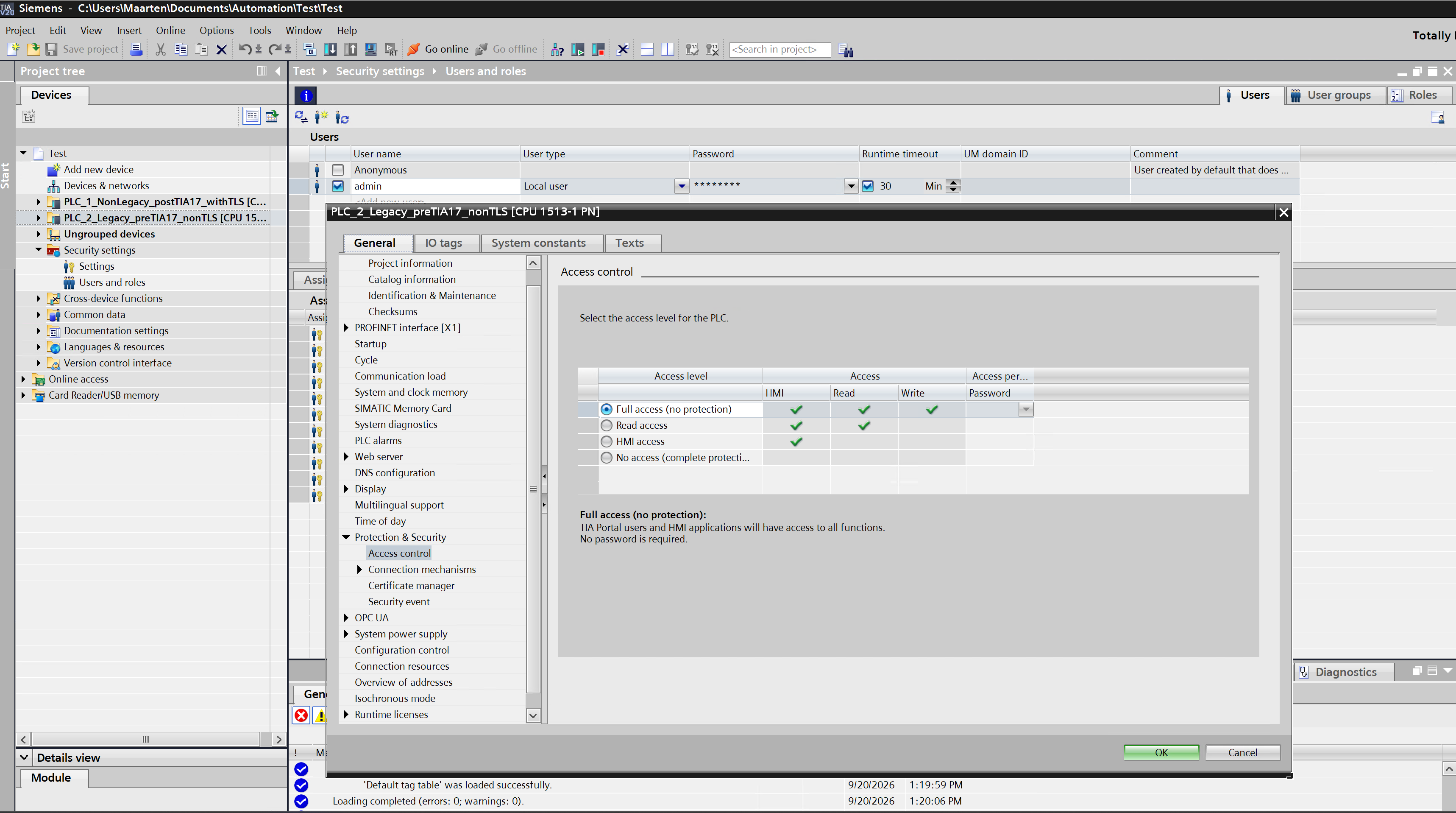
| Access level | HMI | Read | Write |
|---|---|---|---|
| Full access (no protection) | yes | yes | yes |
| Read access | yes | yes | no |
| HMI access | yes | no | no |
| No access (complete protection) | no | no | no |
The connector identifies itself to the controller as an HMI client, so it needs a level that grants at least HMI access, and a level that grants write if you want to use output properties. Use Test connection to confirm that the level and password you picked really allow reading, rather than finding out when the connector fails to browse.
When the selected level is Full access (no protection) no password exists, and the connector should use Anonymous. For any other level, use Password with the password of that level.
Finding the username and password in TIA Portal
Named users replace the single protection-level password on controllers that support them.
- Select the CPU, open Properties, and go to Protection & Security then Access control.
- Choose Enable access control and tick Use local user management (users stored on this device).
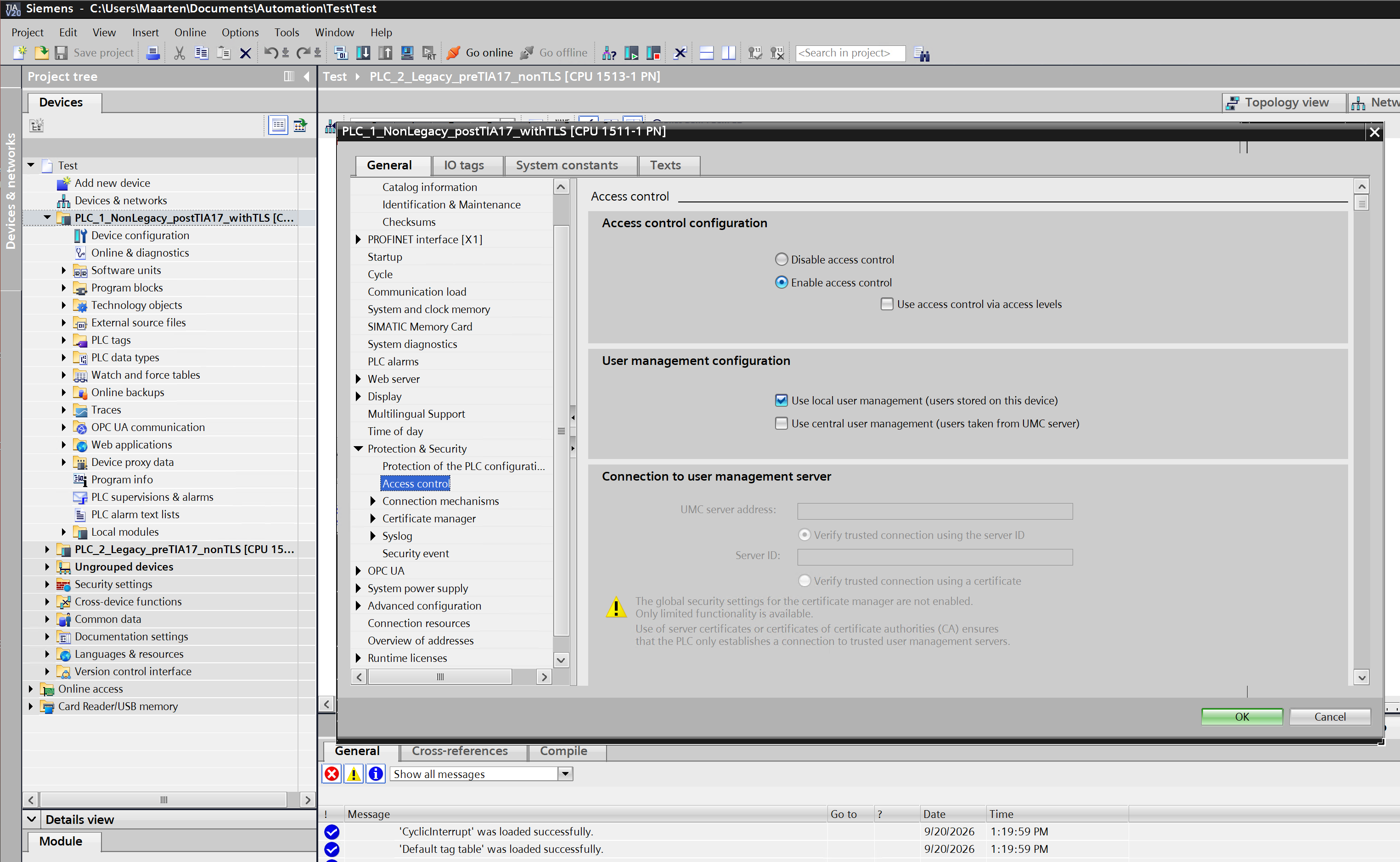
- The users themselves live in the project tree under Security settings then Users and roles. Add a user, set its password, and assign it a role on the Assigned roles tab.
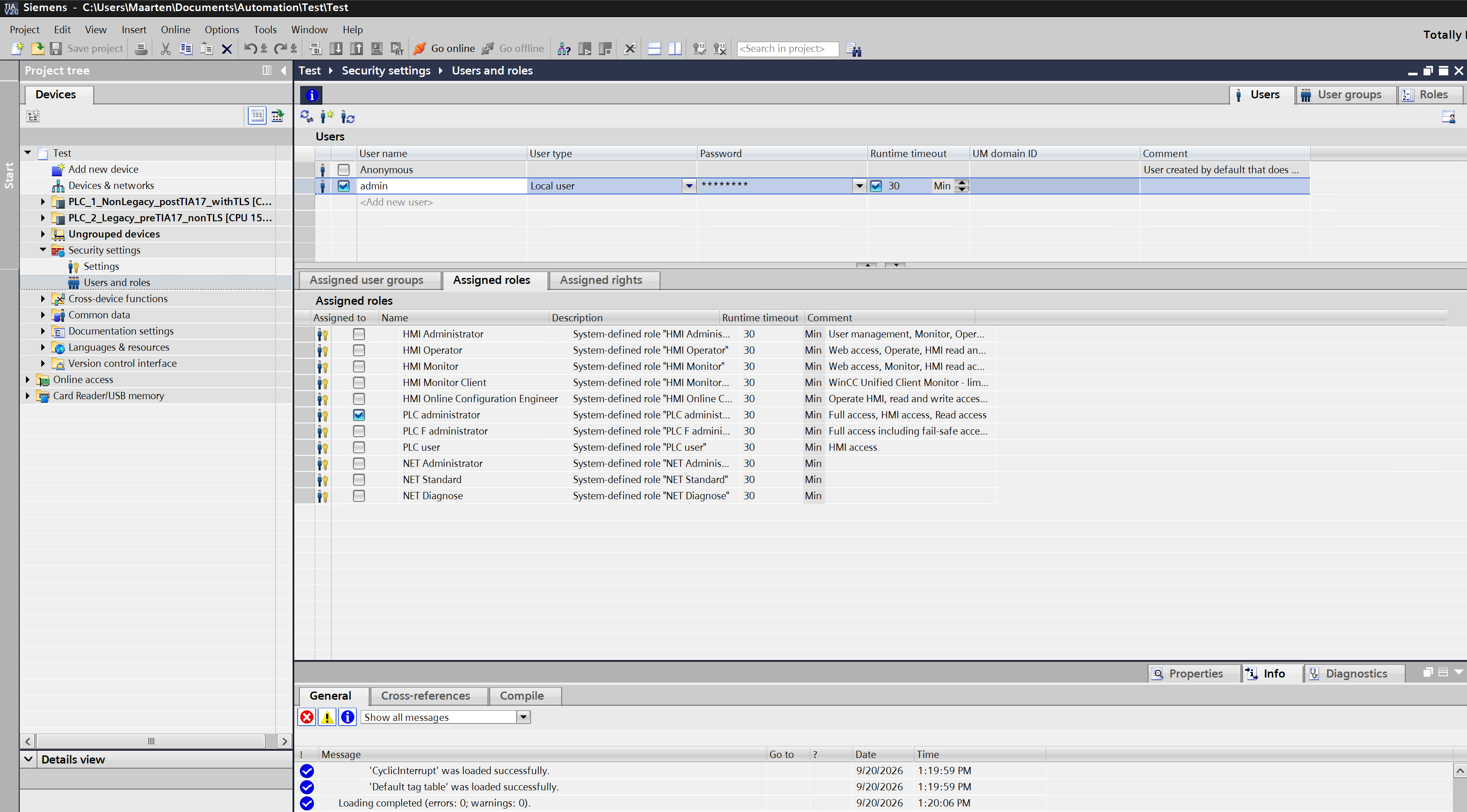
The role decides what the connector may do: the built-in PLC administrator covers full, HMI and read access, while PLC user covers HMI access only. Use the user name and password with Username and password, and confirm the choice with Test connection.
Wording differs slightly between TIA Portal versions; the screenshots are from TIA Portal V20. The settings are always under the CPU's Protection & Security properties. If Use local user management is not offered, the controller does not support named users and you should use Password.
Connection settings
| Setting | Description |
|---|---|
| IP Address | The IP address or host name of the controller. |
| Port | The port, 102 by default. |
| Security Mode | See Transport security. |
| Authentication | See Authentication. |
| Username | Shown for Username and password only. |
| Password | Shown for Password and Username and password. |
| Timeout | Connect and request timeout in milliseconds. |
| Legacy Public Key ID | Shown for Legacy only. Overrides the firmware key; leave empty to detect it. |
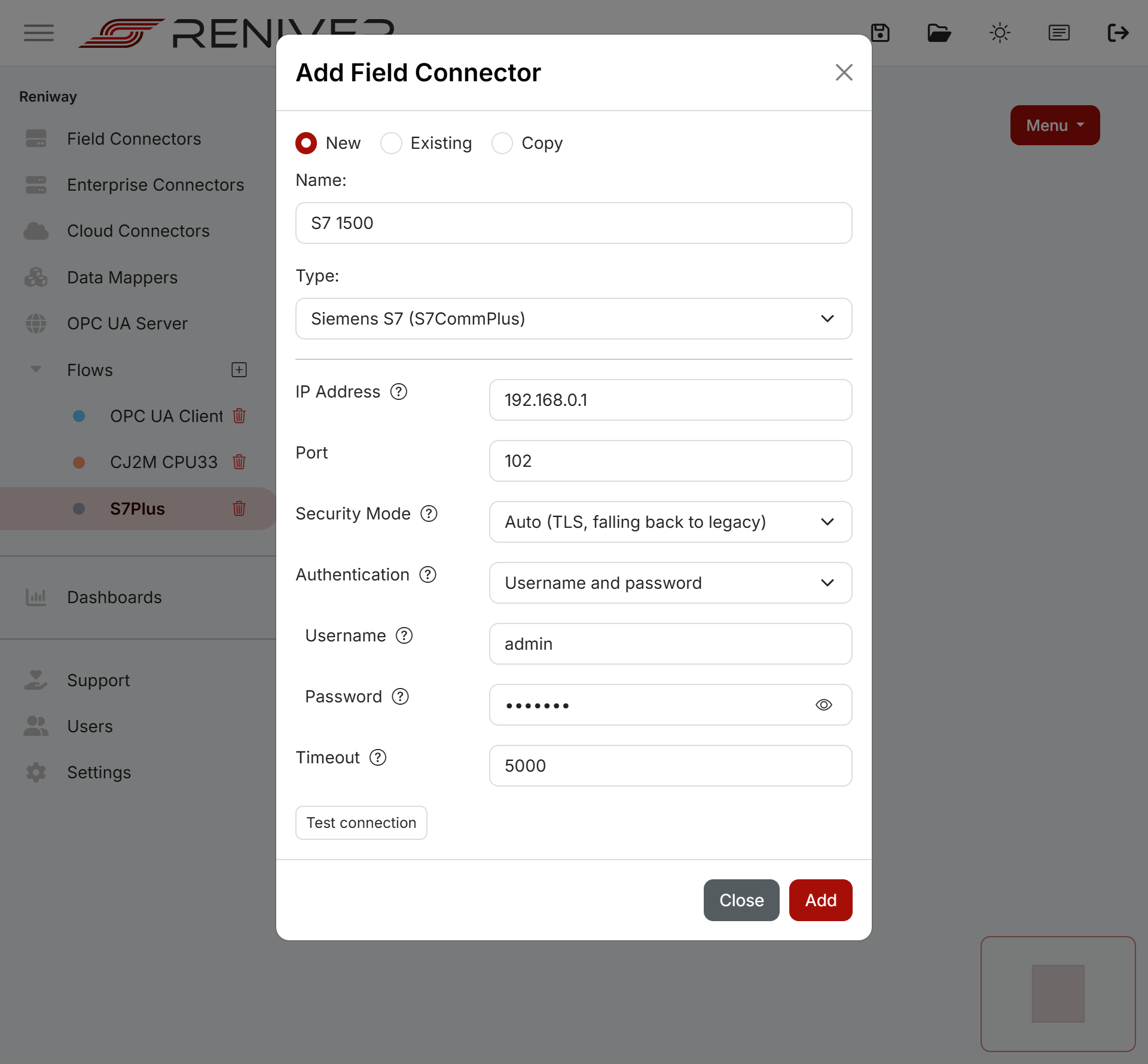
Test connection
The create dialog has a Test connection button that tries the settings against the controller before anything is saved. It reports:
- whether the controller answered, and which security mode was negotiated;
- the order number and firmware version of the CPU;
- whether the username and password were accepted;
- whether the controller returned data, which tells you if a password is needed.
When it finds better settings it offers them, and Apply these settings writes them into the form.
Features
Symbol browsing
Add properties by browsing the controller's symbols. The tree shows data blocks, structures, UDTs and arrays exactly as TIA Portal does, and is loaded one level at a time so large programs stay responsive. Selecting a symbol shows its S7 data type, array dimensions and whether it is accessible from HMI.
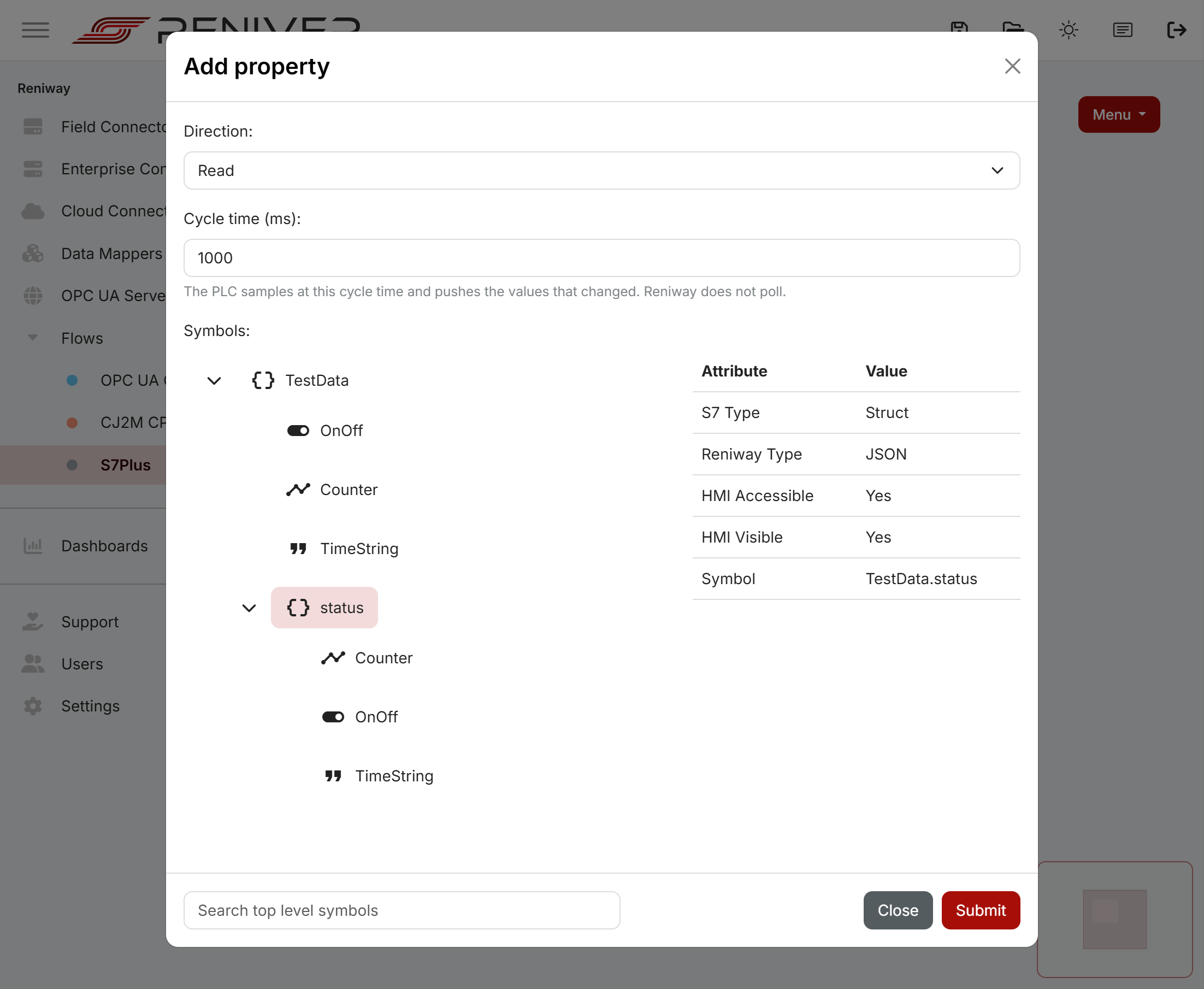
Browsing runs on its own short-lived connection, so it never delays running subscriptions.
Structures as JSON
Besides individual values, a whole data block, structure, UDT or array of structures can be added as
a single property of type JSON. Reniway reads all its members and publishes them as one nested
document, republished whenever any member changes. An array of structures becomes a JSON array.
In the screenshot above, TestData.status is a structure — its S7 Type is Struct — so
selecting it adds every member below it as one property. Selecting TestData.status.Counter instead
would add just that value.
Structures are read-only. To write, add their members individually.
Reading and writing
Input properties are served by subscriptions, grouped by cycle time, with one subscription per group. Output properties are written on demand and need no cycle time.
Writing requires that the symbol is writable from HMI in TIA Portal, and that the access level or user permits writing. A refused write marks the property as errored and logs the controller's error code.
Supported data types
| S7 type | Reniway type |
|---|---|
| Bool | Boolean |
| Byte, USInt | Byte |
| SInt | SByte |
| Int | Short |
| Word, UInt | UShort |
| DInt | Int |
| DWord, UDInt | UInt |
| LInt | Long |
| LWord, ULInt | ULong |
| Real | Float |
| LReal | Double |
| String, WString, Char, WChar | String |
| Date, Date_And_Time, DTL, LDT, Time_Of_Day, LTime_Of_Day | DateTime |
| Time | Int |
| LTime | Long |
| Struct, UDT, data block | JSON |
Arrays of Bool, Byte, USInt, SInt, Int, Word, UInt, DInt, DWord, UDInt, Real, String, Date_And_Time and DTL can be read as a whole array. Arrays of other types are browsable but can only be used one element at a time.
Other features
- Collect all properties creates an input property for every readable symbol in one go.
- CSV import and export of the property list, using the columns
Name,Direction,Type,SymbolPath,PollingInterval. An export can be imported again unchanged. - CPU information — order number, firmware, PLC name and the negotiated security mode — is shown above the property table.
- Automatic reconnect. The connector watches the connection and the subscriptions, and reconnects when the controller stops answering.
- On the legacy handshake the session key is renewed automatically, so connections stay up indefinitely.
Limitations
- Symbols of unsupported data types, such as
Variantand references, are not returned by the controller's browse and therefore cannot be added. The same applies to data blocks stored only in load memory. - Arrays of types without a whole-array mapping are browsable but not selectable as one property.
- Test connection can prove that reading is permitted, but not writing, because that would mean writing a value to the controller.