First-time login and initial setup
Open the Reniway Edge web interface in your browser. For a local installation, use http://localhost. For an edge device, use the host name or IP address assigned during deployment.
You land on the Reniway Edge landing page, with cards for Grafana Dashboards, Reniway and DbGate:
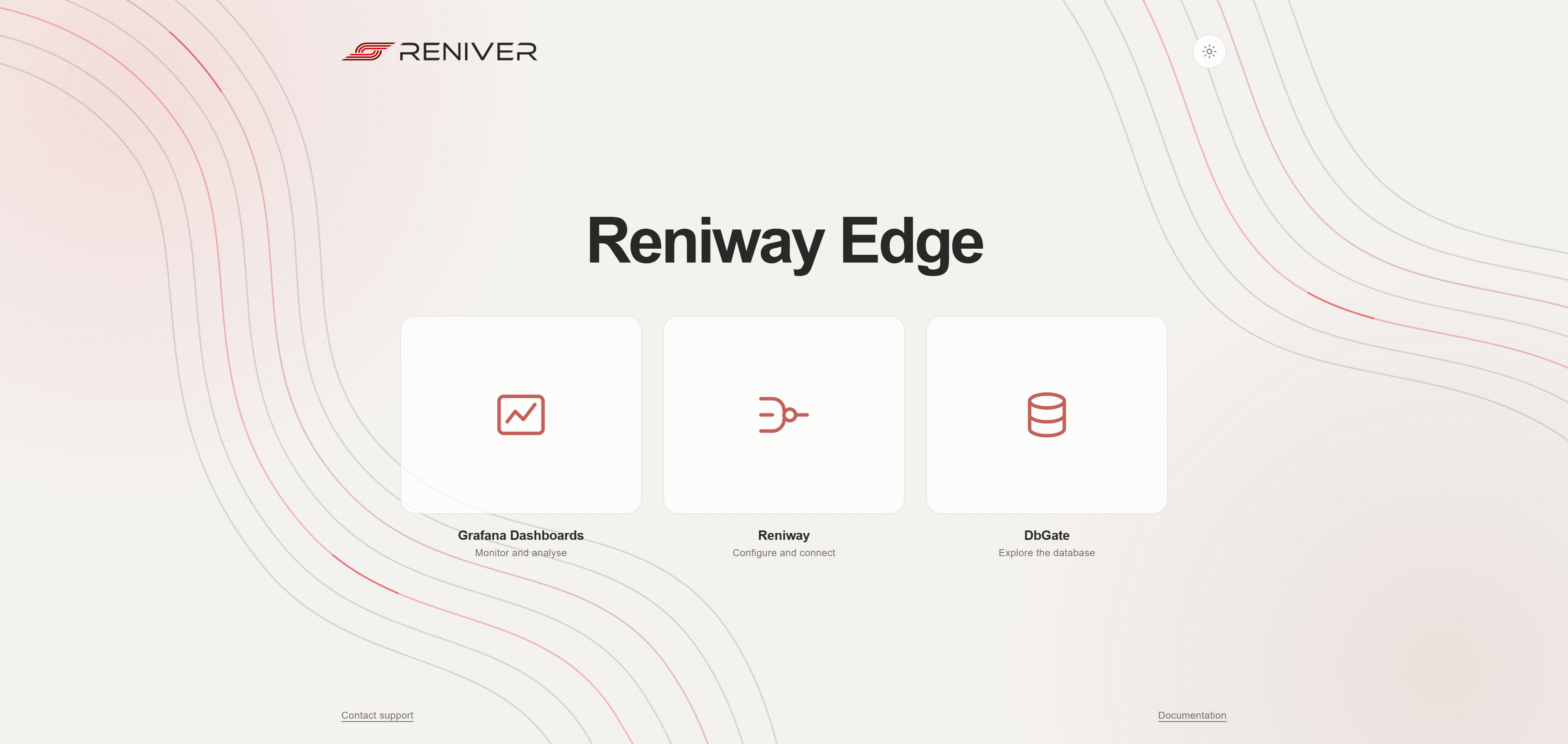
Click Reniway. When it starts for the first time, it shows the Initial setup wizard. It walks through three steps — license, Reniway Cloud registration, and the first user account — and the configuration interface only becomes available once all three are done.
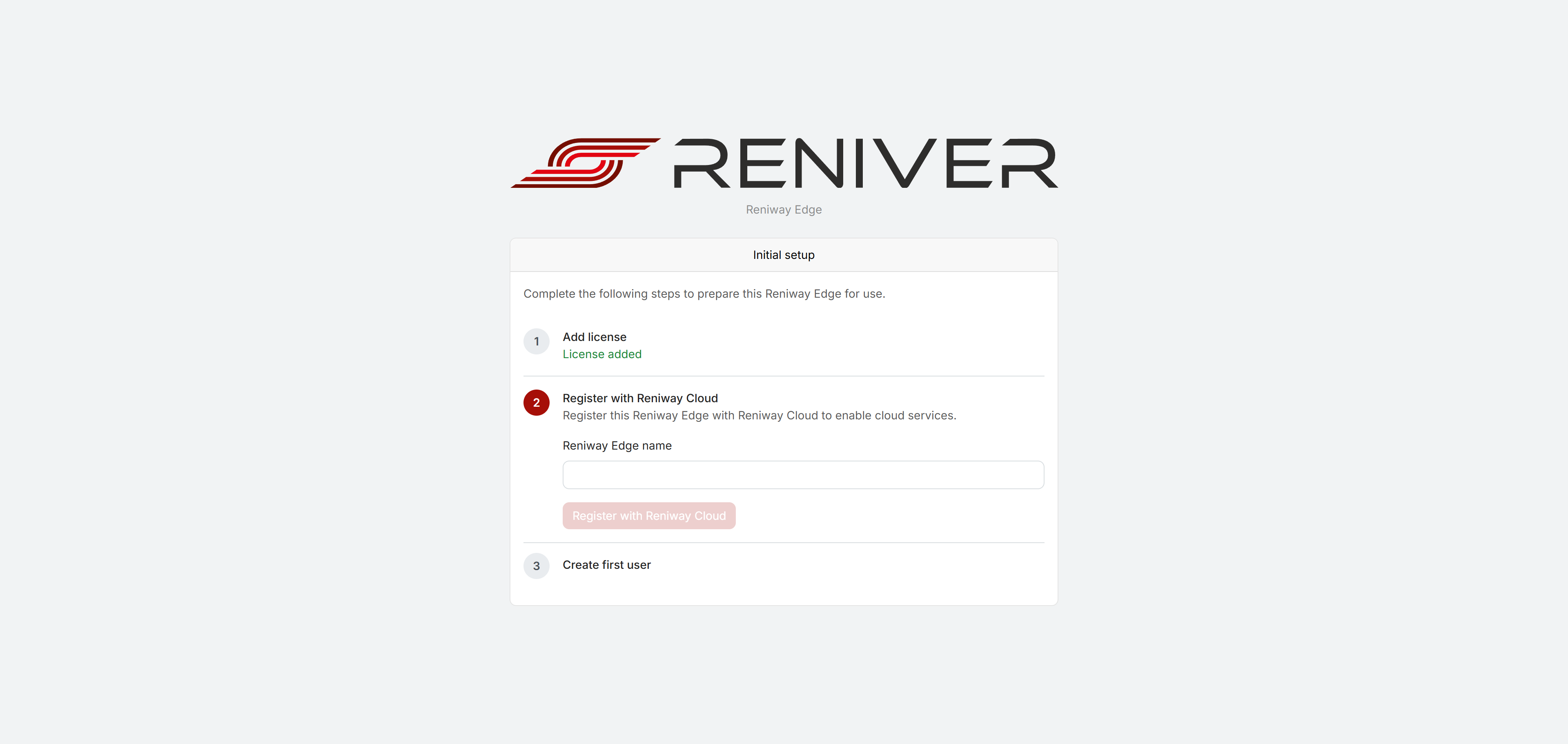
You should have received your license file by email after purchasing Reniway Edge. If you cannot find the file, contact Reniver support to request a replacement.
Step 1: Add license
If no valid license is installed yet, this step asks you to browse to and upload the license file you received. If the license is valid, the wizard moves on to the next step. If the file is expired, invalid, or does not match the system, it shows Invalid License — contact Reniver support if this happens.
Some deployments — for example a device shipped with a customer configuration bundle that already embeds the license — show this step as License added immediately, with nothing to upload.
Step 2: Register with Reniway Cloud
Enter a name for this Reniway Edge and click Register with Reniway Cloud. Registration completes immediately, over your browser's own internet connection — the device itself does not need internet access for this step.
This registers the device and its license with Reniway Cloud so it shows up in the cloud portal. It is a one-time step: the configuration interface, database, connectors and license keep working without internet afterwards.
Step 3: Create first user
Register the first user account with an email address and password. This first account becomes the administrator and keeps every permission; there is no way to grant that afterwards without it.
The same step appears again later if all normal users are ever deleted, so a new first account can be created directly from the web interface.
Log in
After completing the wizard, log in with the account you created. You land on the Reniway Edge landing page, with cards for Grafana Dashboards, Reniway and DbGate — click Reniway to open the configuration interface. Start with Flows in the left menu and follow Create your first flow to add your data sources, transformations, and destinations.
For managing users, permissions, and user time zones after the first login, see Users and Permissions.
To view the active license or upload a replacement license later, open Settings > License.
If you cannot see the initial setup wizard or the login screen, or you have trouble completing the setup, contact us.