Host
The Host tab is used to manage the Reniway Edge device itself. This tab is available when the host management service is online.
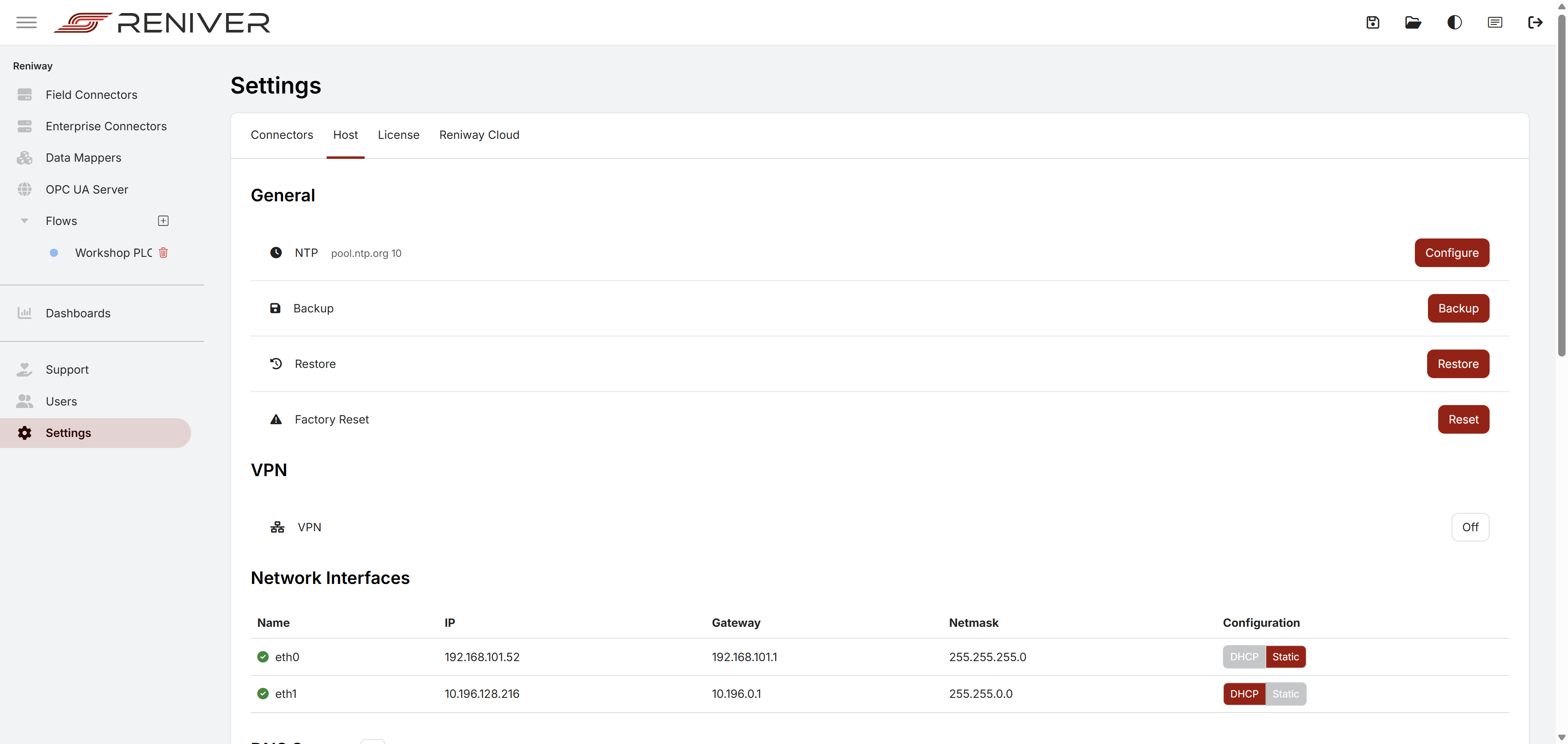
General
The General section contains the maintenance actions for the appliance.
NTP
The NTP setting defines which time source the device uses for clock synchronization.
Configureopens a dialog where you can set either an NTPPoolor a specificServer- the configured value is shown directly in the settings overview
Correct time synchronization matters for logs, database timestamps, certificates, and industrial event histories.
Backup
Backup creates a backup of the environment through the host management service.
Use this before larger changes, before restore operations on another system, or before maintenance work.
Restore
Restore restores a previously created backup.
Use this when you want to bring back a known-good environment state.
Factory Reset
Factory Reset removes all user data from the environment and resets the system to a clean state.
This is a destructive action. Use it only if you want to wipe the environment completely.
VPN
The VPN control starts or stops the outgoing Reniver VPN connection.
When enabling the VPN, the interface shows a confirmation dialog because the device creates an outgoing connection to the Reniver VPN cloud service over UDP port 1195.
Use this when remote support or managed access through Reniver is required and your IT policy allows it.
Network Interfaces
The Network Interfaces table shows the available interfaces, their current addressing, and whether they use DHCP or Static configuration.
For each interface you can switch between DHCP and Static.
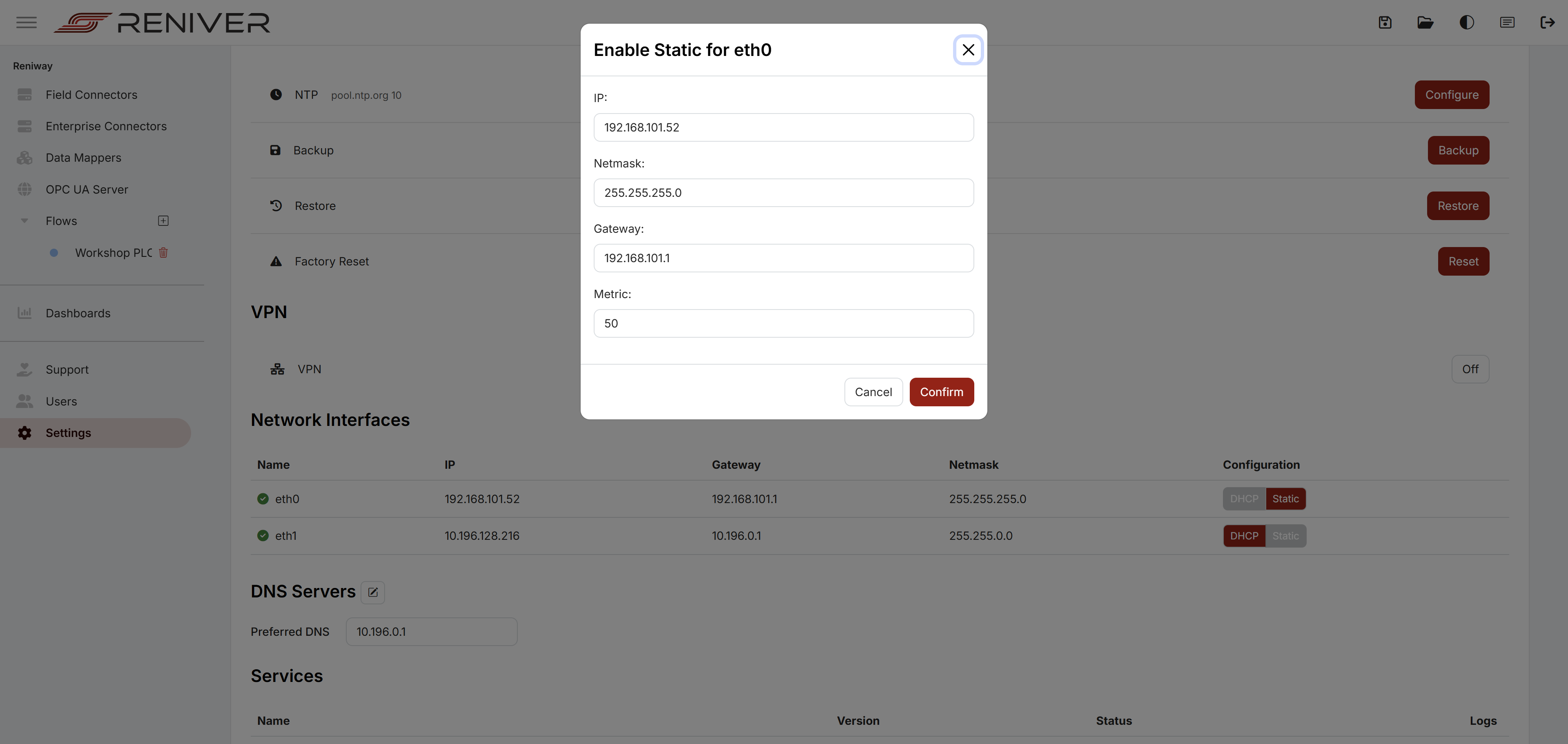
When switching to Static, the dialog allows you to set:
IPNetmaskGatewayMetric
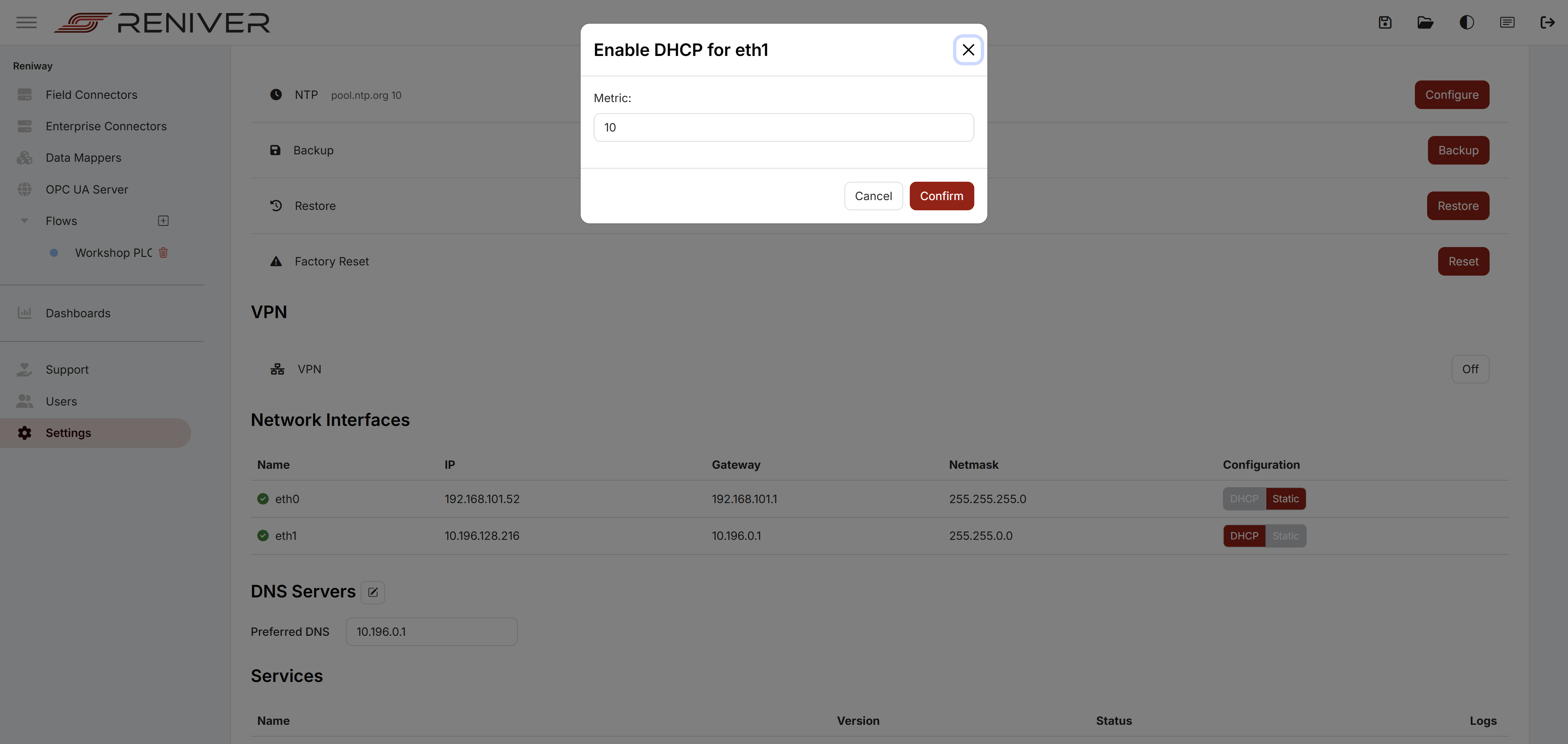
When switching to DHCP, the dialog allows you to set the routing Metric.
The metric influences route priority when multiple interfaces are active.
DNS Servers
The DNS Servers section shows the currently configured resolvers.
Use the edit button to open the DNS dialog and set:
Preferred DNSAlternate DNS
The preferred DNS must be filled in. The alternate DNS is optional.
Services
The Services table lists the containerized services running on the device.
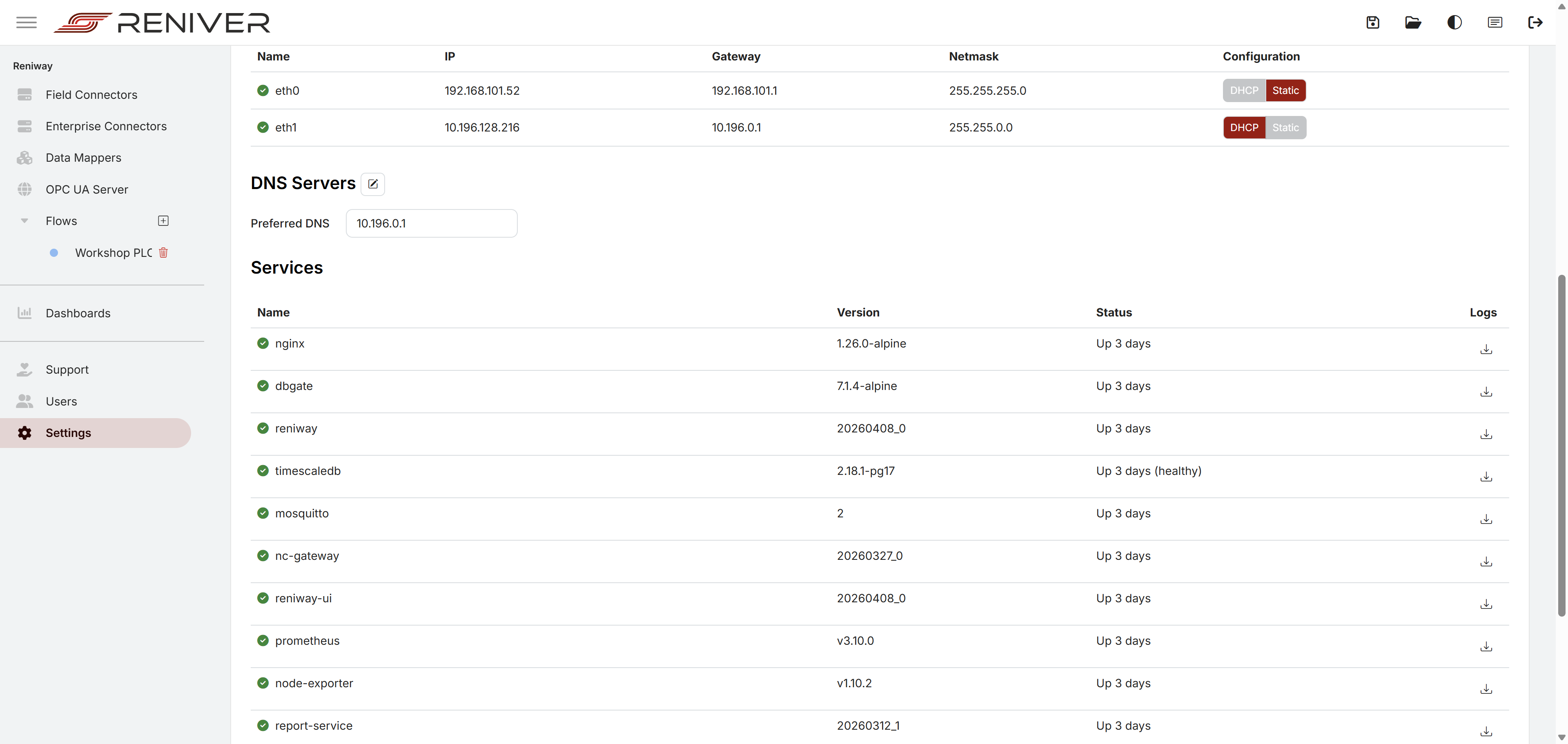
For each service the page shows:
- the service name
- the deployed image version
- the current runtime status
- a log download button
Use the log button to download the service log as a text file. This is useful for troubleshooting, support, and deployment validation.