Users and Permissions
User management is available from the Users page in the Reniway Edge application. This page is used to add users, remove users, set passwords, configure the user timezone, and control which parts of the platform each user can access.
First user registration
When the system has a valid license but no normal user account yet, the website shows the registration page on load.
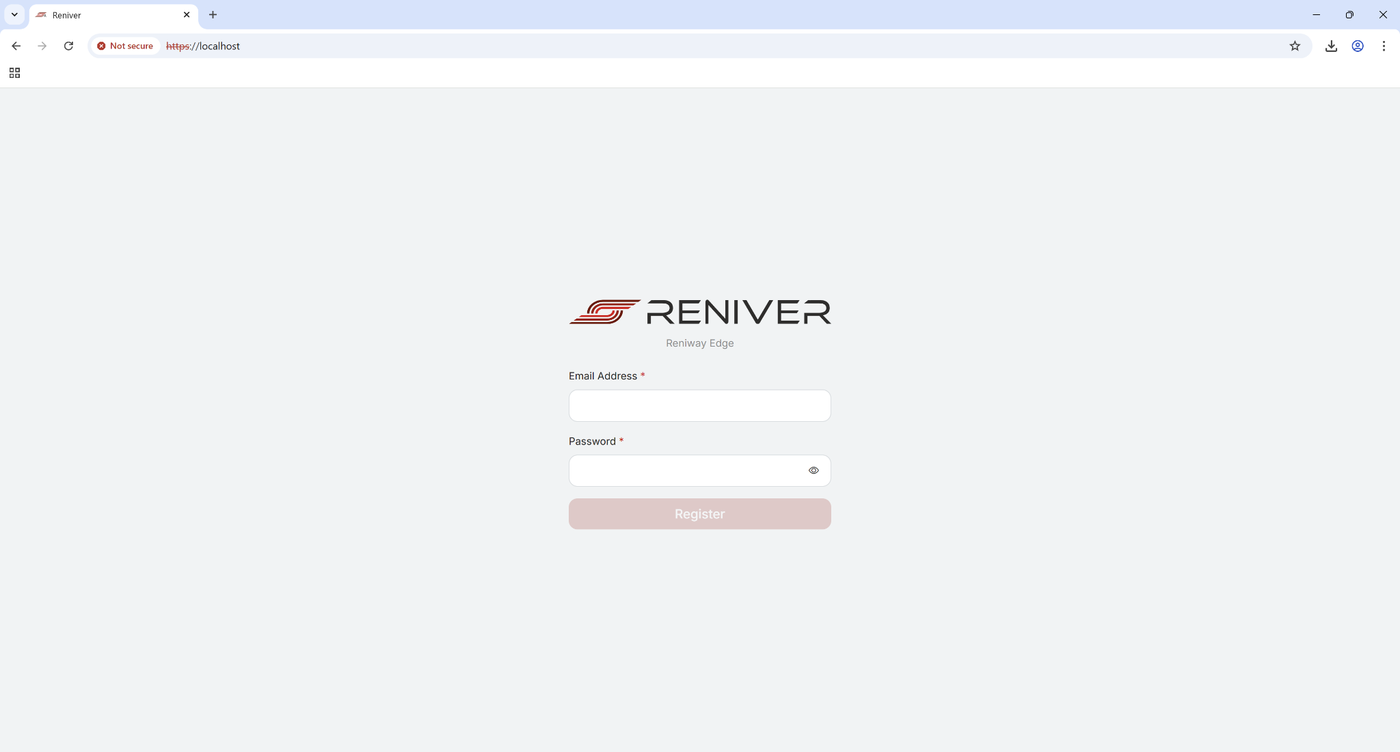
The first registered user becomes the initial administrator and receives all available permissions.
This behavior is not limited to the first installation. If all normal users are deleted later, the register page is shown again the next time the website is loaded. The built-in support user does not prevent this behavior.
Users overview
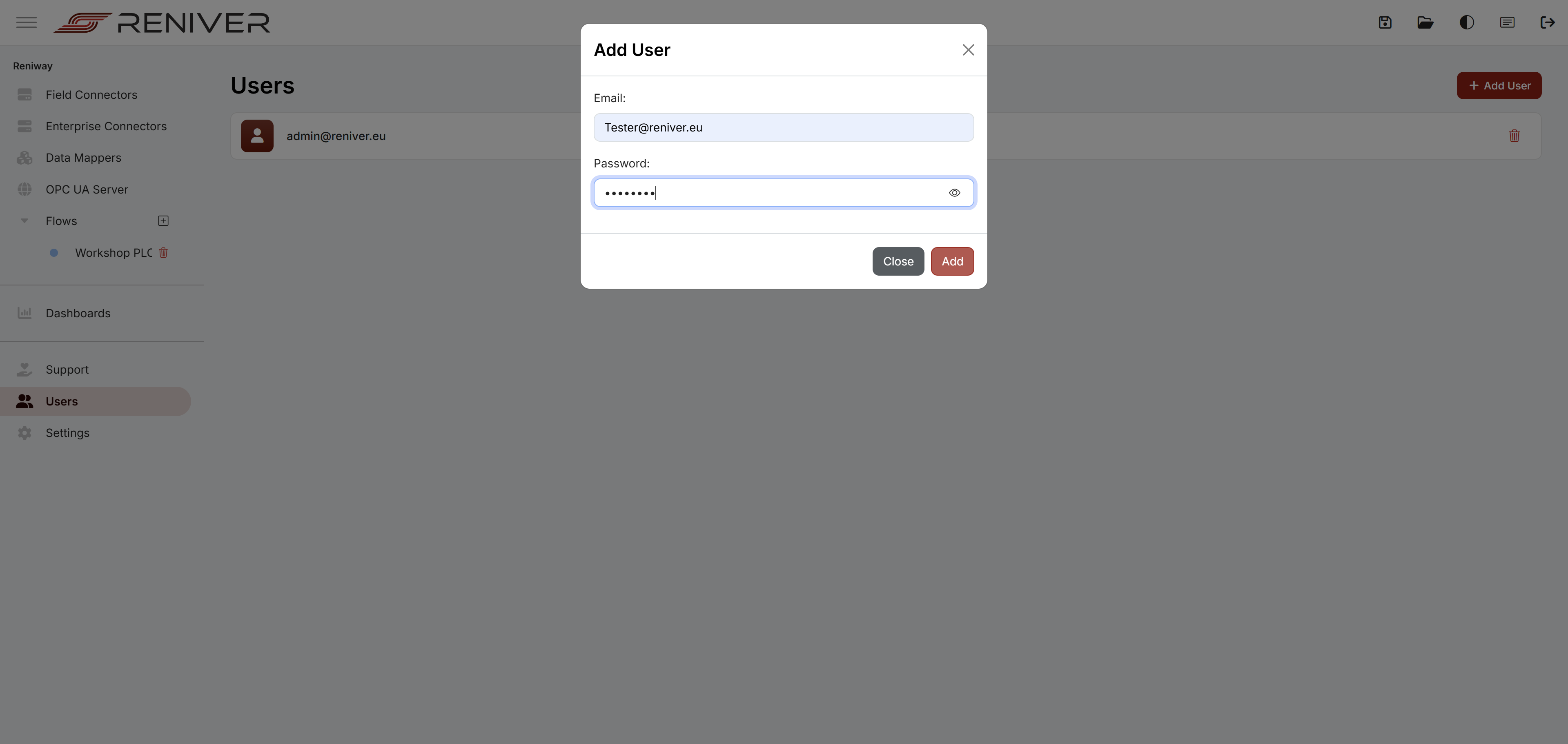
Open Users from the left menu to see the current user list.
Users.Viewallows opening the users overview and user detail pages.Users.Manageallows adding users, deleting users, changing passwords, and updating permissions.
Use Add User to create an additional account:
User detail page
Open a user from the list to manage the account in more detail.
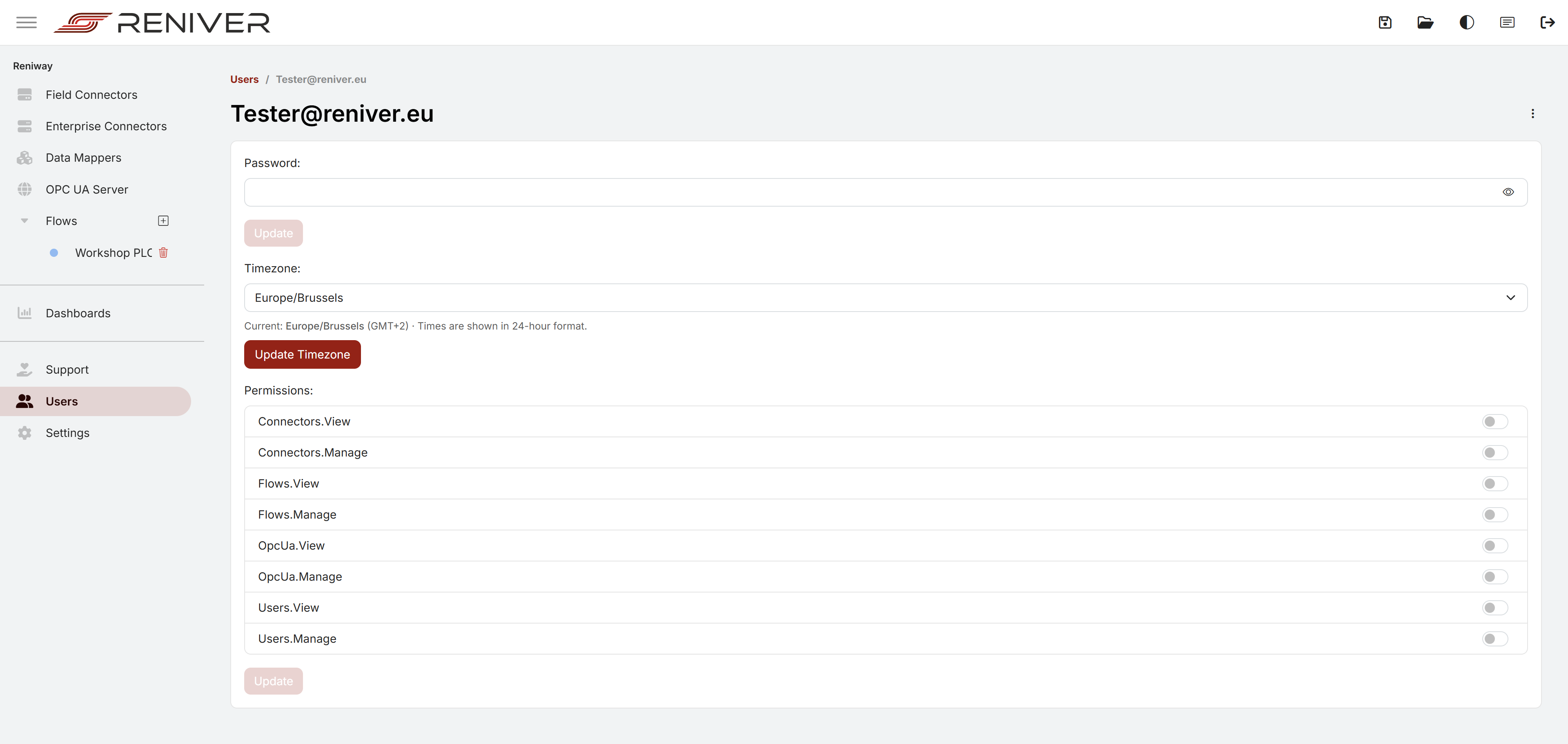
From this page you can:
- update the user's password
- select the user's timezone
- grant or revoke permissions with the permission switches
The available permissions follow a simple View and Manage pattern:
| Permission | Purpose |
|---|---|
Connectors.View | View connectors and their configuration. |
Connectors.Manage | Create and edit connectors and connector properties. |
Flows.View | View flows. |
Flows.Manage | Create and edit flows. |
OpcUa.View | View the OPC UA Server pages. |
OpcUa.Manage | Change the OPC UA server configuration and address space. |
Users.View | Open the users section. |
Users.Manage | Create, edit, and delete users and permissions. |
User timezone and local timestamps
Each user can have their own timezone. The selected timezone is used by the interface to render timestamps in local time for that user.
This affects, for example:
- timestamps in the realtime logging window
Last updatedtimestamps for live values and value changes- other date and time fields shown in the web interface
If no user-specific timezone is stored yet, the interface uses the browser timezone. If the browser timezone cannot be resolved, the fallback is UTC.
When you change the timezone for your own account, the interface starts using the new timezone immediately after saving it.
For the logging window itself, see Realtime Logging.